
Operated by WSOR, LLC · omessage
omessage (omessage.osterman.co) sends
account-notification text messages — one-time verification codes and
new-activity alerts — only to its own registered users who ask for them. Providing a phone
number is optional and is never required to use omessage. There is no marketing list, and no third
party can opt a user in.
How a user opts in
- Sign in to your omessage account at omessage.osterman.co.
- Open Settings → Notifications → Phones.
- Enter your own mobile number and tick the consent checkbox (unchecked by default).
- Submit, then enter the one-time code omessage texts to that number to confirm it.
Only after verification do you receive notifications, governed by the settings you control.
The consent form a user sees
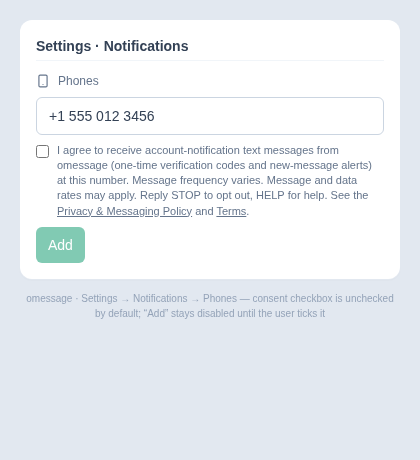
This is the actual opt-in screen inside the omessage application. The consent checkbox is
unchecked by default; the user must tick it before the “Add” button is enabled:
The exact consent language
I agree to receive account-notification text messages from omessage (one-time
verification codes and new-message alerts) at this number. Message frequency varies. Message and
data rates may apply. Reply STOP to opt out, HELP for help.
The checkbox links to the
Privacy & Messaging Policy and
Terms of Use.
Message types, frequency & cost
- Types: one-time verification codes and account/activity notifications.
- Frequency: varies based on your account activity.
- Cost: message and data rates may apply.
Opting out
Reply STOP to any message to stop all texts (reply START to
resume, HELP for help), or remove/disable the number in your omessage settings at
any time.